Free guide · Updated November 2026 · Part two of two
The Vibe Coding Guide
Build the tools you wish you had. Describe them; AI writes the code.
Trackers, calculators, dashboards and simple websites, built by describing what you want in plain English. You don’t need to read code. You need to know what good looks like and be willing to test.
New to AI? The Vibe Working Guide sets up Claude, your instructions and your connectors first. This guide assumes you’ve done that.
00 · What vibe coding is
You’re the product owner. AI is the developer.
Vibe coding is building software by conversation. You describe what you want, AI builds it, you try it and say what to change. The skill isn’t coding. It’s being clear about the problem, patient with the testing and honest about what’s still broken.
Good first things to build
A tracker
Projects, renewals, applications or volunteers, with a simple dashboard on top.
A calculator
Pricing, staffing, budgets or ROI, with a few sliders to try scenarios.
A planner
Rotas, event run-sheets or content calendars you can click through.
A one-page site
An event page, a proposal or a campaign landing page with your own web address.
A team tool
A checklist, a quiz, a sign-up sheet or an onboarding guide for new starters.
A data view
Turn a spreadsheet export into charts you can filter and share.
Not for your first builds
- Anything that takes payments
- Anything storing customer, patient or staff records
- Anything that makes decisions about individual people
- Anything the business depends on, until a developer has reviewed it
01 · Pick your route
Start simple. Add tools only when you need them.
Most people should start with Route A and stay there for a while. Move on when you want your own web address or a project you’ll keep improving.
Route A
Build it in a conversation
- Best for
- Your first builds, quick tools, anything for you or a few colleagues.
- You need
- Just Claude.
- Time
- Minutes
- You get
- A working tool inside Claude (an artifact) that you can share with a link.
Route B
Build a real project with Claude Code
- Best for
- Websites with your own address, tools you’ll keep improving, anything bigger than one page.
- You need
- Claude Pro or above, plus free GitHub and Vercel accounts.
- Time
- An afternoon for the first one
- You get
- A live website, with every change saved so you can go back.
Route C
Add an editor such as Cursor
- Best for
- When you want to see the files, make small tweaks yourself and work on larger projects.
- You need
- Route B, plus an editor.
- Time
- Once you’re comfortable with Route B
- You get
- The same projects, with more control.
Using ChatGPT or Copilot instead?
- ChatGPT
- Route A works in ChatGPT’s Canvas, which can preview simple web pages. For Route B, OpenAI’s equivalent of Claude Code is Codex.
- Microsoft Copilot
- Microsoft 365 Copilot isn’t built for this. Microsoft’s coding assistant is GitHub Copilot, a different product. If your organisation uses Power Apps, ask IT whether you can build there instead.
02 · Route A · Your first build
A working tool in one conversation
No accounts beyond Claude, nothing to install. Claude builds the tool inside the conversation, you use it there, and you can share it with a link.
Time: 20–40 minutes
Step 1: Pick something small and real
A tool you’d use this week, built from numbers you already have. Not your whole job: one annoying spreadsheet.Step 2: Paste the starter prompt
It makes Claude interview you first, one question at a time, so you don’t have to think of everything up front.Step 3: Check the recap, then say go
Claude summarises what it’s going to build and lists anything it guessed. Correct it before it starts.Step 4: Try it, then improve it
Click everything. Then ask for changes in plain English: “make the chart bigger”, “add a button to reset”. Use the build-loop prompts below.Step 5: Share it
Use Share or Publish to get a link. On personal plans anyone with the link can open it without a Claude account. On company plans, links usually stay inside your organisation unless your admin allows otherwise.
Copy this
The starter prompt
Works for almost any small tool. Fill in the first line and paste the rest as it is.
I want to build [a simple tool that does X, for Y people]. I'm new to this and don't write code, so use plain English throughout. Before you build anything: 1. Ask me questions, one at a time, to understand what I need: who uses it, what goes in, what should come out, and what it should look like. Give an example answer with each question. Show progress like "Question 3 of 8". If I say "not sure", suggest something sensible and mark it as an ESTIMATE. 2. Remind me not to type any names, personal details or confidential figures. Invented or rounded numbers are fine. 3. When you have enough, recap what you'll build in a short table and list every estimate. Wait for me to say go. Then build it as one interactive page I can use straight away, that works on a phone and a laptop. Afterwards, tell me in three steps how to use it, and suggest three improvements I could ask for next, one at a time. Start with your first question.
Not a tool? Just ask.
For slides, documents and visual designs rather than working tools, you don’t need any of this. Ask for them in an ordinary Claude conversation.
03 · The build loop
Nobody gets it right first time. Including the AI.
Building with AI is a loop, not a single request. Claude will do a lot of work quickly, but it misses things and sometimes says something is finished when it isn’t. Treat it like a fast, keen junior developer who needs regular check-ins.
- Plan
- Build
- Check
- Fix
- Ask what’s missing
Ask what it hasn’t finished
AI is fast but won’t always finish everything it promised, a bit like a keen junior colleague. Ask directly.
- When to use it
- After every build, before you share it.
Compare what you've built with what we agreed. List anything that's missing, half-finished or only pretending to work (buttons that do nothing, placeholder text, made-up data). Then fix them one at a time, and tell me as you finish each one.
04 · Route B · Accounts
Two free accounts for real projects
When you want a proper website with its own address, or a tool you’ll keep improving, you need somewhere to keep the files and somewhere to put them online. Create GitHub first, then sign in to Vercel with your GitHub account.
Time: 10 minutes
Four GitHub words you’ll hear
- Repository (repo)
- A project folder.
- Commit
- A saved change, with a note saying what changed.
- Branch
- A copy to try something on without touching the live version.
- Pull request
- A request to merge a branch back in. Like accepting tracked changes.
Personal or work?
Vercel’s free Hobby plan is for personal, non-commercial projects. If the site is for your organisation, check whether you have a company account or need the Pro plan.
05 · Route B · Claude Code
Plan, build, check, save
Claude Code is the part of Claude built for software. It creates the files, runs them, fixes its own errors and saves each version to GitHub. You stay at the level of “what should this do?”
Time: An afternoon
Step 1: Open the Code tab
In the Claude desktop app, choose Code. You can also use it in the browser at claude.ai/code, or on your phone. Start with the desktop app.Step 2: Connect GitHub
Sign in to GitHub when asked, and let Claude create a new repository for your project. It handles the saving and versioning for you.Step 3: Plan before it builds
Switch on Plan mode and use the most capable model available (Opus at the time of writing). Then paste the planning prompt below. Claude will question you, then show you a plan. Nothing gets built until you approve it.Step 4: Approve the plan, then watch
Claude writes the code, runs it and shows you a preview. It will ask permission before some steps. Read what it’s asking and say yes when it makes sense.Step 5: Check, fix, repeat
Use the build-loop prompts. Expect three or four rounds before a first version feels right. That’s normal.Step 6: Save it
Ask Claude to “commit and push these changes to GitHub”. That saves the version and, once Vercel is connected, puts it live.
The planning prompt
Reverse prompting for real projects. You describe the idea; Claude asks what it needs to know. With Plan mode on, at the start of any new project or big change.
I want to build [describe the website or tool, who it's for and what it should do]. I don't write code, so explain things in plain English and make sensible technical choices for me. Use a well-known, well-supported approach that can be put online with Vercel. Before you plan anything, ask me questions about what you need to know to make this as good as it can be: the people using it, the pages or screens, what it should look like, and anything that must not happen. Ask a few at a time and wait for my answers. Then write a plan I can approve: what you'll build, in what order, and what I'll be able to see at each stage. Don't start building until I say go.
Keep a project brief
Ask Claude to write a CLAUDE.md file: a note at the top of your project explaining what it is, who it’s for and the rules to follow. It reads it every session, so you don’t repeat yourself.
One change at a time
Small, clear requests beat one giant list. Save (commit) after each thing that works.
Show, don’t describe
Paste a screenshot of what’s wrong, or of a site you like the look of. Claude can see images.
06 · Route B · Put it online
From your laptop to a live address
Time: 15 minutes
Step 1: Import the project into Vercel
In Vercel, choose Add New → Project and pick your GitHub repository. Accept the suggested settings and press Deploy.Step 2: Get your web address
A minute later you have a live address like yourproject.vercel.app. Every change you save to GitHub updates it.Step 3: Add your own domain (optional)
Buy a domain in Vercel, or connect one you own under the project’s Domains settings. Vercel tells you exactly what to change.Step 4: Decide who can see it
Vercel Authentication (free) limits preview links to people on your Vercel team. A password on the live site needs a paid plan. To keep a page out of Google, ask Claude to add a “noindex” tag. Treat anything online as findable.
Ask Claude about your site
Want Claude to keep an eye on your site? Add Vercel as a connector in Claude, and you can ask it things like “why did the last update fail?” in plain English.
Every update goes live
Once connected, anything saved to GitHub’s main version is published. For bigger changes, ask Claude to work on a branch and check the preview link before you merge.
07 · Tools worth knowing
Optional extras
None of these are needed for your first builds. Add them when you feel a specific gap.
What happened to Project IDX?
Earlier versions of this guide suggested Google’s Project IDX. It became Firebase Studio, which stopped taking new users in June 2026 and closes in March 2027, so don’t start a project there.
08 · Build safely
It looks finished. That doesn’t mean it’s safe.
AI-built tools can look polished and still have holes. For personal tools on invented data, that barely matters. The moment real data or real customers are involved, it does.
Do
- Use invented or rounded numbers while you build
- Keep passwords and API keys out of your messages and code: ask Claude to store them as “environment variables”
- Ask IT before connecting anything to company systems
- Add a note saying figures are examples, until they’re real
- Get a developer to review anything that will be relied on
Don’t
- Uploading real customer or staff data to test with
- Pasting passwords or keys into a chat
- Publishing internal information on a public link
- Taking payments or storing personal data without expert help
- Assuming it works because it looks finished
09 · Checklist
From first build to live site
Your ticks are saved in this browser.
0 of 12 done
Every prompt in one place
The Vibe Working Kit has the starter, planning and build-loop prompts in a printable workbook, a CLAUDE.md project brief template and fifteen ready-made skills for everyday work. £49 / $49.
10 · Jargon buster
What the words mean
Links in this guide
- ClaudeRoute A starts here (opens in a new tab)
- Claude Code on the webclaude.ai/code (opens in a new tab)
- Claude desktop appIncludes the Code tab (opens in a new tab)
- GitHubProject storage and history (opens in a new tab)
- VercelHosting and domains (opens in a new tab)
- CursorAI code editor (opens in a new tab)
- Google AntigravityGoogle’s AI editor (opens in a new tab)
- 21st.devDesign components (opens in a new tab)
- Claude Code docsFor when you want the detail (opens in a new tab)
For your organisation
The AI Readiness Checklist
You’ve set yourself up. Is your organisation ready to do the same? A free checklist to see where you stand on tools, data, skills and governance.
Get the checklistFor your team
Roll this out across your team
Want your whole team working this way, with the right tools approved and the guardrails in place? Talk it through with James. No pitch, just a useful half hour.
Book a 30-minute call (opens in a new tab)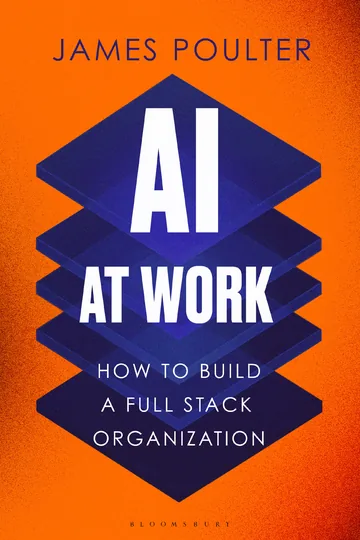
The book
AI at Work
James Poulter · Bloomsbury
How to build a full stack organisation: what changes for people and teams when AI does more of the work, and how to lead through it.